Axonite Log Viewer Read OneDrive sync logs in your browser
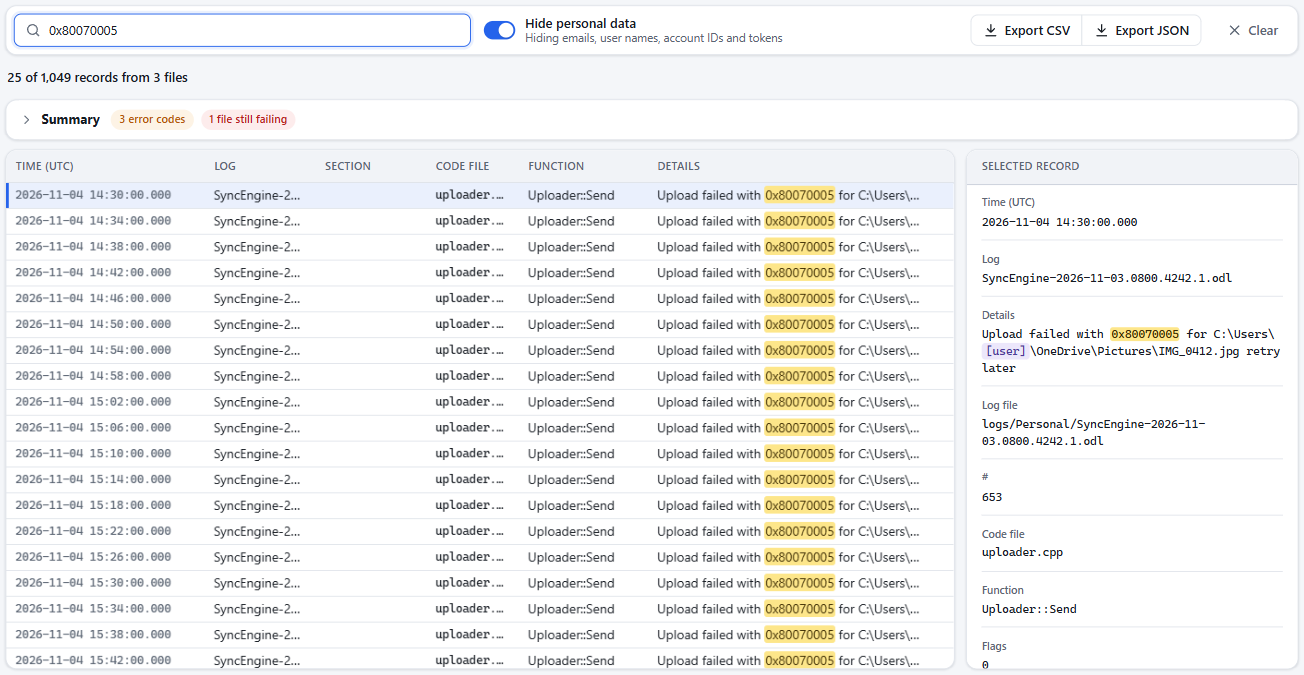
Axonite Log Viewer opens the logs the OneDrive desktop app writes and turns them into a table you can search and filter. Drop the whole logs folder and it shows file and folder names where OneDrive kept the key. It also picks out the error codes, with when they happened, and the files that didn't sync.
It runs in your browser on Windows and Mac, with nothing to install and no account.
It's a free beta. It reads the logs we've been able to test well, and some files may not open yet. If one doesn't, or something looks wrong, please tell us which kind of file it was.
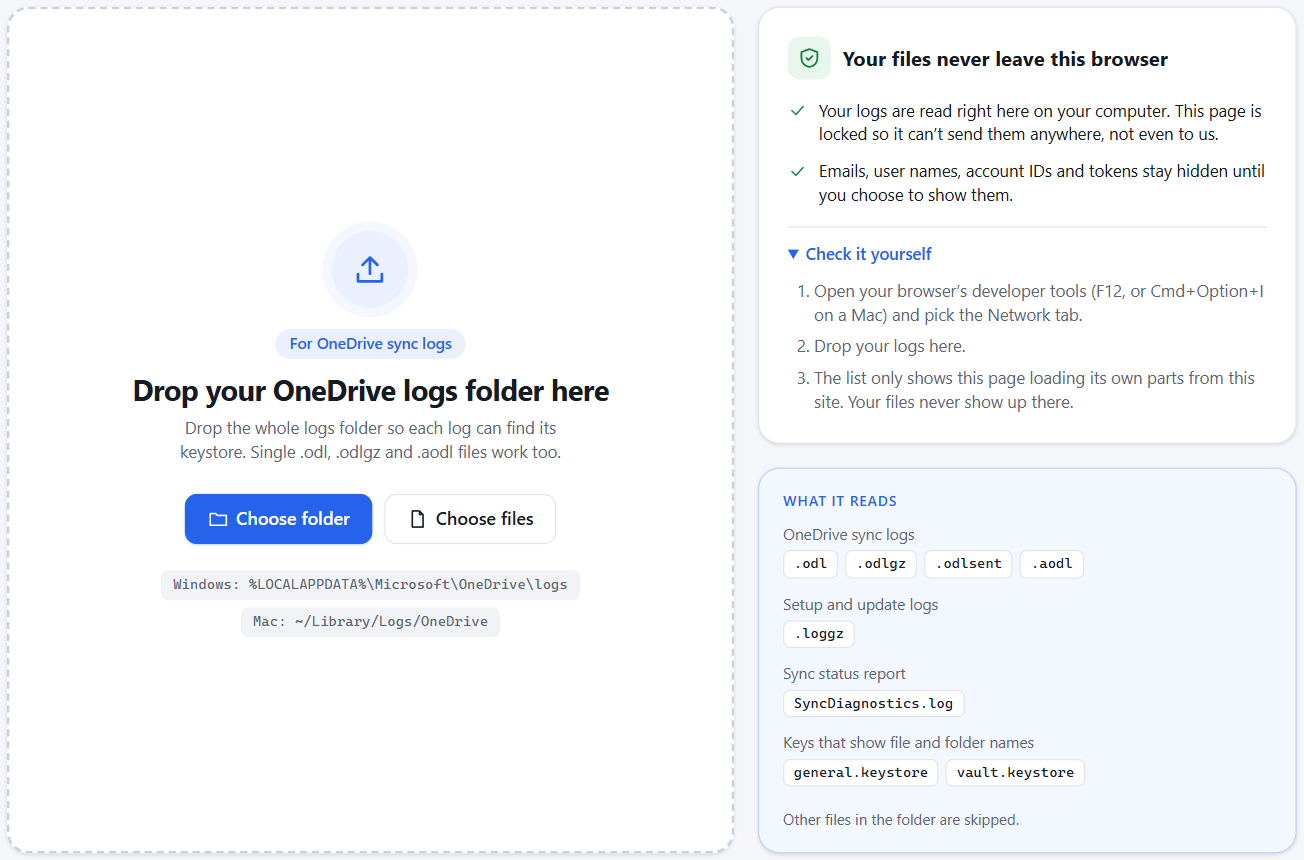
Your logs stay on your computer
The page reads your logs on your own computer. It's locked so it can't send anything anywhere, including to us, and it stores none of your log data. Close the tab and it's gone.
You can check this yourself. Open your browser's developer tools (F12, or Cmd+Option+I on a Mac), pick the Network tab, and drop your logs. The only entries are the page loading its own files from logs.axoniteglobal.com.
Email addresses, user names, account IDs, and tokens are hidden on screen until you choose to show them. Exports hide the same things, and file and folder names too, unless you turn hiding off.
What it shows
- Every record in one table, with search and a time filter.
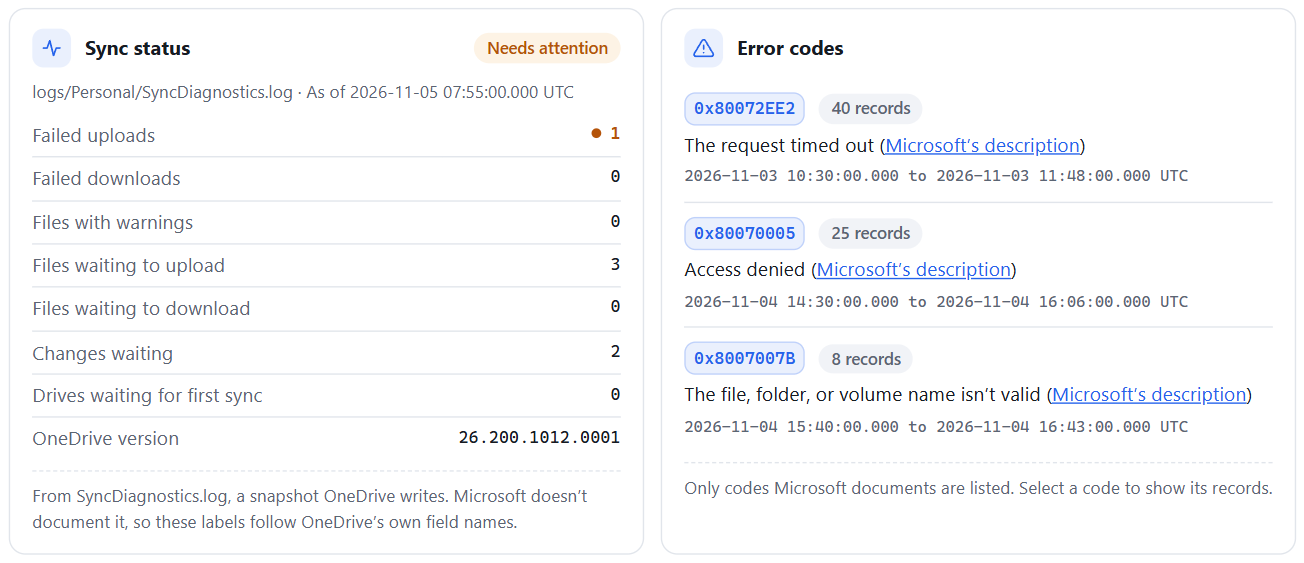
- OneDrive's own sync status, such as files waiting to upload and failed downloads.
- Error codes Microsoft documents, each with a short meaning and a link to Microsoft's page about it.
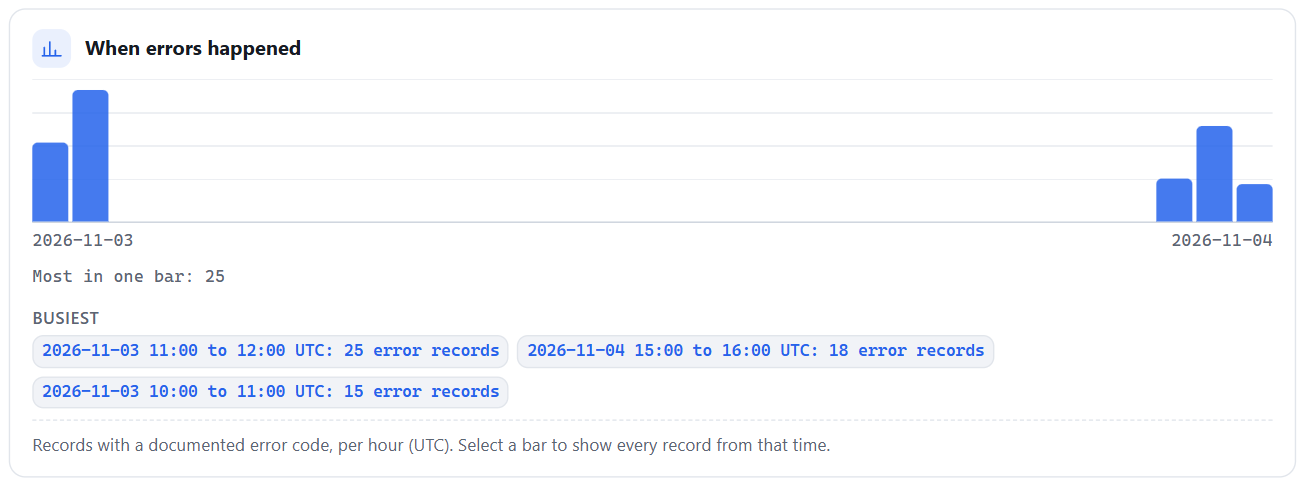
- A chart of when errors happened. Pick a bar to see the records from that time.
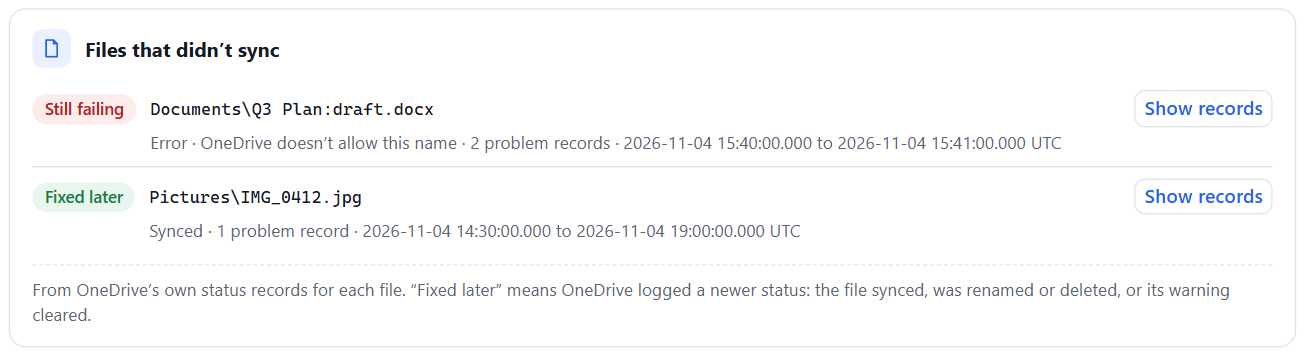
- Files that didn't sync, and whether OneDrive fixed them later.
- Export to CSV or JSON.
Contact
Email support@axoniteglobal.com. The Send feedback link in the viewer goes to the same address.